Microsoft Defender
built into Windows, no extra app installed
Open GuideSeptember 8, 2026
A step-by-step guide to getting your micro1 interview open when a security tool, ad blocker or network filter is stopping it.

If you opened your micro1 interview link and landed on this screen, you're in the right place. Most people are back in the interview within two or three minutes. Work through this page from the top.
The interview page loaded, but one of the background requests it needs - the one that fetches your interview session - never came back. Almost always, something between your browser and micro1 stopped that request. The usual suspects, in order of how often we see them:
| Cause | How common | Fix |
|---|---|---|
| Antivirus or internet security software doesn't recognise our domain yet | Very common | Jump to the guides below |
| An ad blocker or privacy extension | Common | Browser extensions guide |
| A blocker running on your router, VPN or DNS | Common | Browser extensions guide |
| A genuinely flaky connection | Less common | Quick checks |
Nothing is wrong with your computer, and nothing has been flagged as unsafe. Security tools are cautious with domains they haven't seen before, and micro1.ai is simply new to them.
Do these in order. Stop as soon as the interview loads.
Still stuck? Then something on your machine is filtering the request, and the next section is the fix.
You need to tell your security tool that micro1 is safe. Every tool calls this something slightly different — allow list, safe list, exceptions, exclusions, trusted sites — but it's the same idea.
Pick the guide that matches what you have installed:
Microsoft Defender
built into Windows, no extra app installed
Open Guide
McAfee
Total Protection, LiveSafe, WebAdvisor
Open Guide
Norton
Norton 360, Norton Security, Safe Web
Open Guide
Malwarebytes
Desktop app or Browser Guard
Open Guide

Avast or AVG
Free Antivirus, Premium Security, Internet Security
Open Guide




Ad blockers and privacy extensions
uBlock Origin, AdBlock, Ghostery, Privacy Badger, Brave Shields
Open GuideWindows
Click the ^ arrow near the clock, bottom-right. Your security app's icon lives there. Or open Settings → Privacy & security → Windows Security → Virus & threat protection — it names whichever app is in charge.
Mac
Look along the top menu bar for a shield, an "A" in a circle, or a similar icon.
Nothing Installed?
You're on Microsoft Defender, so start with that guide.
You may have more than one. If the first guide doesn't fix it, work through the others.
Only if you're comfortable poking around, and it helps our support team a lot:
| What you see | Fix |
|---|---|
net::ERR_BLOCKED_BY_CLIENT | An extension is blocking it → extensions guide |
net::ERR_CONNECTION_RESET or ERR_CONNECTION_CLOSED | Antivirus or firewall is cutting the connection |
net::ERR_NAME_NOT_RESOLVED | A network-wide blocker such as Pi-hole, AdGuard Home or NextDNS → see here |
A screenshot of that Console tab is the single most useful thing you can send us.
Use the Contact support button on the error screen, or email us at support@micro1.ai, and include:
Your interview link
Which browser and version, and Windows or Mac
Which security software you have, and which guides you already tried
A screenshot of the Console tab, if you got one
We'd rather hear from you early than have you miss the slot. If your interview time is close, tell us — we can reschedule.
The screenshots in the vendor guides are simplified illustrations of each app's settings screen, not photographs of the real thing. Menu names match, but colours and layout will differ a little from your version — vendors redesign these screens often. Follow the words, and you'll find the setting.
Use this guide if: you're on Windows and haven't installed any other antivirus. Defender is switched on by default, so this is most Windows users.
What you're adding: micro1.ai
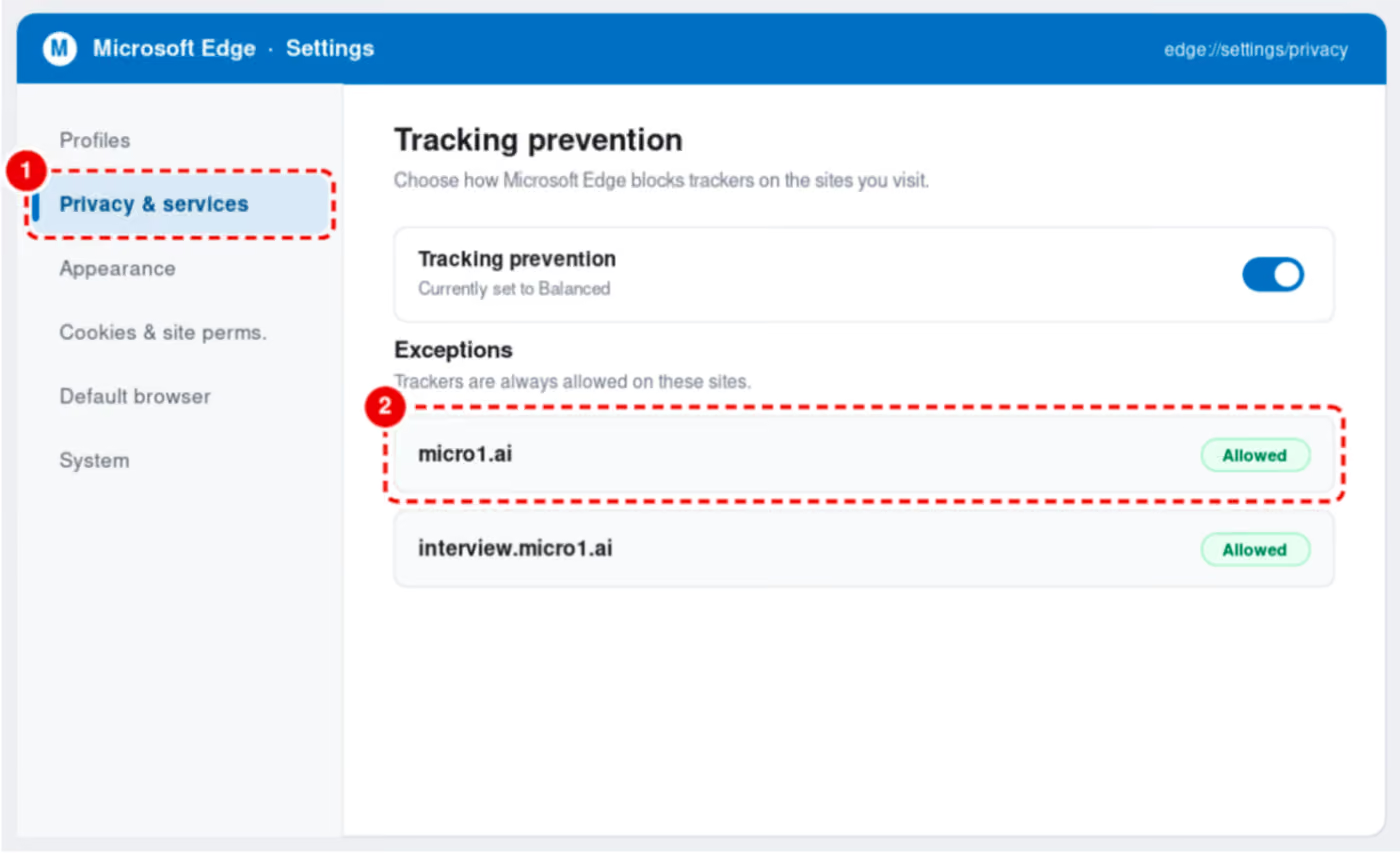
Defender itself has no "allowed websites" list. When a request to micro1 is cut off on a Defender-only machine, it's normally Microsoft Edge's own privacy settings doing it — so that's where the two fixes below live. Do both.
If you use Chrome or Firefox rather than Edge, skip Step 1 and go straight to Step 2, which has the Chrome equivalent.
Step 1 - Let the site through Edge's tracking prevention
Step 2 - Always allow micro1's cookies and site data
The interview needs to remember who you are between requests. If cookies are blocked, the request that fetches your session comes back empty and you get the error screen.
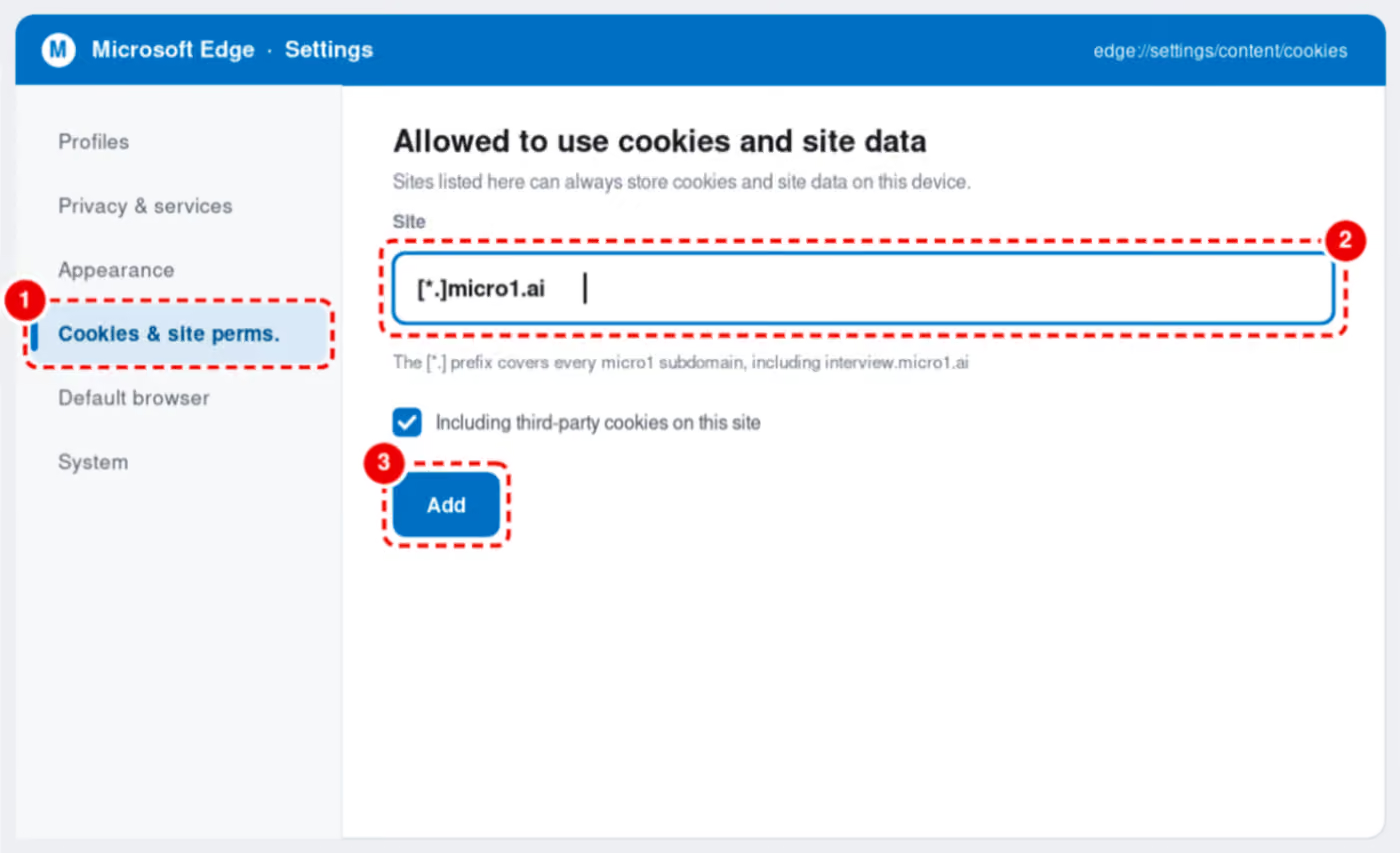
In Chrome, the same setting lives at Settings → Privacy and security → Third-party cookies → Sites allowed to use third-party cookies → Add, and it uses the same [*.]micro1.ai format.
Did it work?
Close every Edge window, reopen the interview link, and press Ctrl + Shift + R.
Still blocked? Defender probably isn't the one doing it. Check whether you also have an ad blocker or privacy extension, or a blocker on your router, VPN or DNS. If neither applies, get in touch.
Use this guide if: you have McAfee Total Protection, LiveSafe, Antivirus Plus, or just the McAfee WebAdvisor browser extension. McAfee comes pre-installed on a lot of new laptops, so you may have it without ever having chosen it.
What you're adding: *.micro1.ai
McAfee's web filtering is called WebAdvisor. It checks every site you open against McAfee's reputation database, and quietly drops connections to anything it doesn't recognise — which is what happens to newer domains.
Step 1 - Open Web Protection
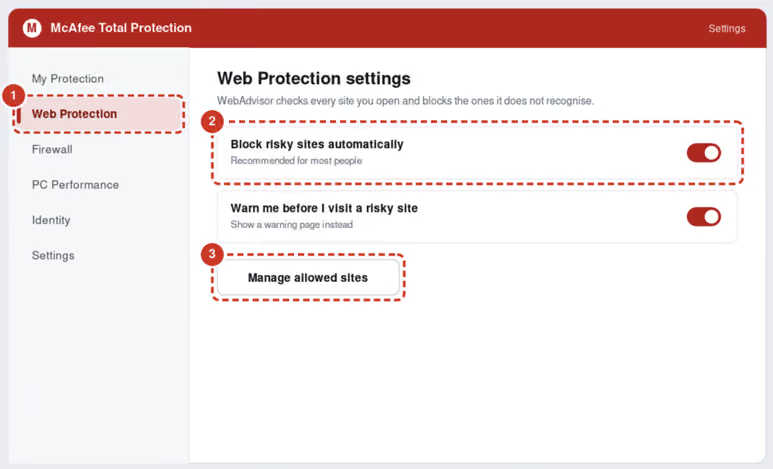
Step 2 - Add micro1 to the allowed sites
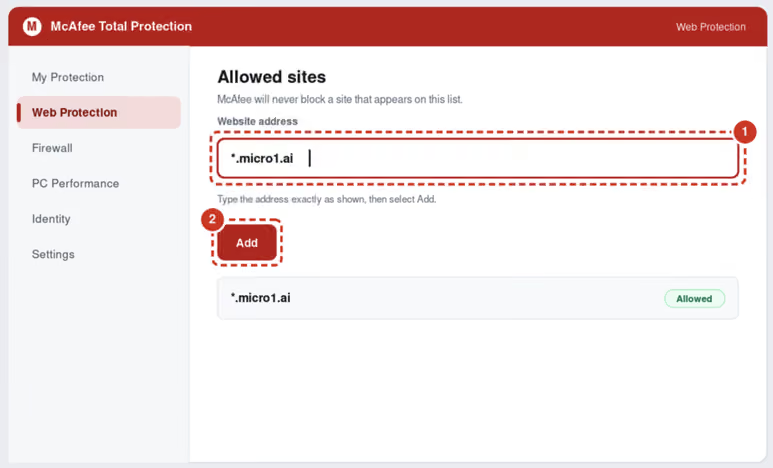
Once it appears in the list below, McAfee will stop checking it.
Step 3 - Check the browser extension too
WebAdvisor also runs as a browser extension, with its own separate opinion about the site.
If you'd rather not hunt for it, you can disable the extension for the duration of the interview: in Chrome, go to chrome://extensions , find McAfee WebAdvisor, and switch it off. Turn it back on afterwards.
Step 4 - Only if the Firewall is involved
If the interview still won't load and everything else has been ruled out:
Did it work?
Close your browser completely, reopen the interview link, and press Ctrl + Shift + R (Cmd + Shift + R on a Mac).
Still blocked? Check whether you also have an ad blocker or privacy extension, or a blocker on your router, VPN or DNS. If neither applies, get in touch with us — don't let it eat into your interview slot.
Use this guide if: you have Norton 360, Norton Security, Norton AntiVirus Plus, or the Norton Safe Web browser extension.
What you're adding: micro1.ai
Norton can stop the interview in two different places, so this guide covers both: Intrusion Prevention, which inspects network traffic and can drop it silently, and Safe Web, which rates websites.
Step 1 - Open the Intrusion Prevention exclusions
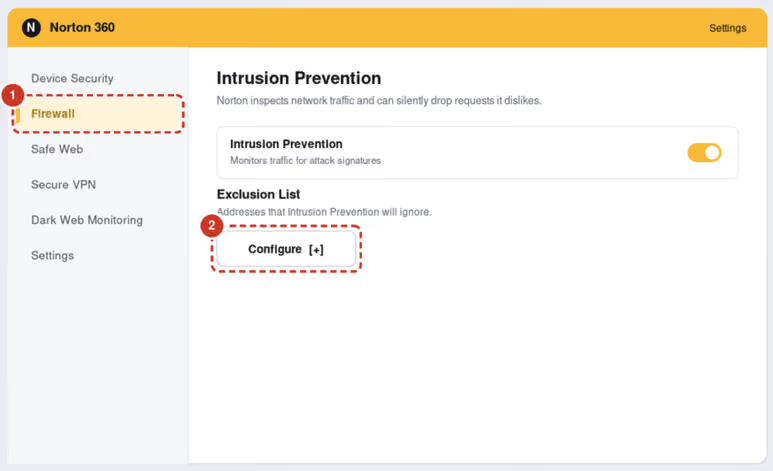
Step 2 - Add micro1

Step 3 - Tell Safe Web the site is fine
Safe Web is the part that rates websites, and it runs both inside Norton and as a browser extension.
In the Norton app:
In your browser:
Did it work?
Close every browser window, reopen the interview link, and press Ctrl + Shift + R (Cmd + Shift + R on a Mac).
Still blocked? Check whether you also have an ad blocker or privacy extension, or a blocker on your router, VPN or DNS. If neither applies, let us know, especially if your interview is soon.
Use this guide if: you have the Malwarebytes desktop app, the Malwarebytes Browser Guard extension, or both.
What you're adding: micro1.ai
Malwarebytes is stricter than most about unfamiliar domains, so it's a common cause of this error even though it usually sits alongside another antivirus rather than replacing it. If you have it, start here.
Step 1 - Open the Allow List
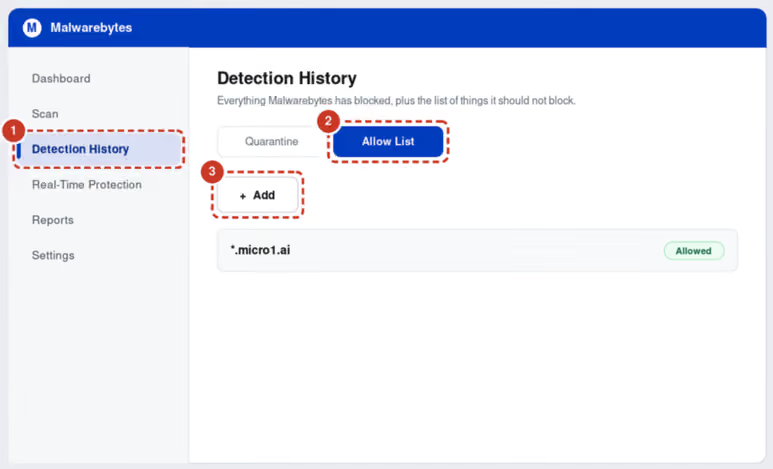
Step 2 - Allow the website

Step 3 - Do the same in Browser Guard
Browser Guard is a separate product with its own separate list, even though it shares the name. If you have the extension, it needs its own entry.
Quick alternative: click the Malwarebytes icon while you're on the interview page and use the toggle to turn protection off for this site only.
Step 4 - Note what the "Website blocked" pop-up said
If Malwarebytes showed a notification when the interview failed, it named the address it stopped. That address is worth reading — if it's something other than micro1.ai, tell us what it was when you get in touch, as it helps us pin down the cause.
Did it work?
Close your browser completely, reopen the interview link, and press Ctrl + Shift + R (Cmd + Shift + R on a Mac).
Still blocked? Check whether you also have an ad blocker or privacy extension, or a blocker on your router, VPN or DNS. If neither applies, contact us — don't let it eat into your interview slot.
Use this guide if: you have Avast Free Antivirus, Avast Premium Security, AVG AntiVirus Free, or AVG Internet Security.
What you're adding: *.micro1.ai
Avast and AVG are the same company running the same engine, so the steps are identical — only the colours differ. If a menu name doesn't match exactly, look for the closest wording; it'll be in the same place.
The part that blocks connections to websites is called Web Shield. When it stops one, it logs it as URL:Blacklist
Step 1 - Open Exceptions
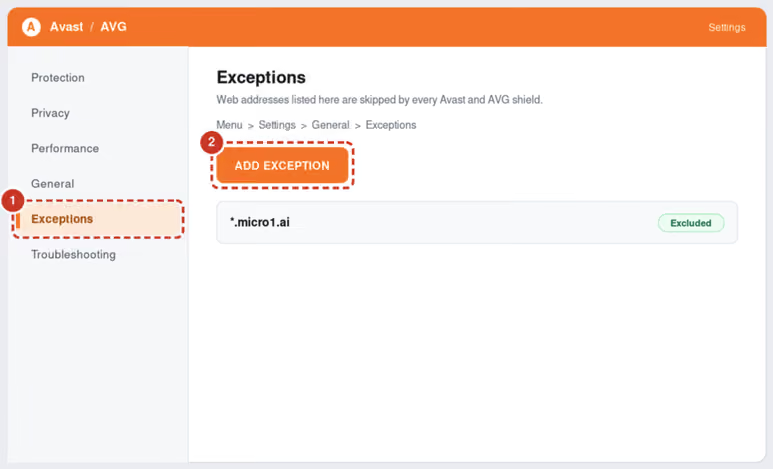
Step 2 - Add the exception
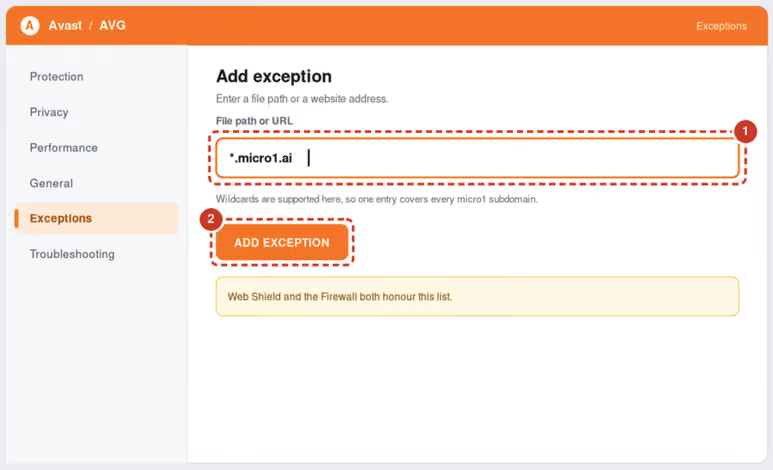
One entry here is honoured by Web Shield and the Firewall, so you don't need to repeat it elsewhere.
Step 3 - Check Web Shield's own exclusions
Some versions keep a second list inside the shield itself. Worth two minutes if step 2 didn't do it.
Step 4 - Turn off HTTPS scanning, if you have to
Avast and AVG can decrypt and re-sign HTTPS traffic to inspect it. This occasionally breaks video and real-time connections even when the domain is allowed.
If the interview page loads but the camera or microphone won't connect:
Turn it back on when you're finished.
Did it work?
Close your browser completely, reopen the interview link, and press Ctrl + Shift + R (Cmd + Shift + R on a Mac).
Still blocked? Check whether you also have an ad blocker or privacy extension, or a blocker on your router, VPN or DNS. If neither applies, contact us.
Use this guide if: the interview loads in a private window but not a normal one. That's the tell-tale sign of an extension, because most extensions are switched off in private windows.
What you're adding: micro1.ai
Ad blockers and privacy extensions work by cancelling requests before they leave your browser. When one cancels a request the interview needs, you get the error screen. In the developer console this shows up as net::ERR_BLOCKED_BY_CLIENT
The fastest fix: turn the blocker off for this one site
Nearly every extension has a per-site switch, and this is quicker than editing any list.
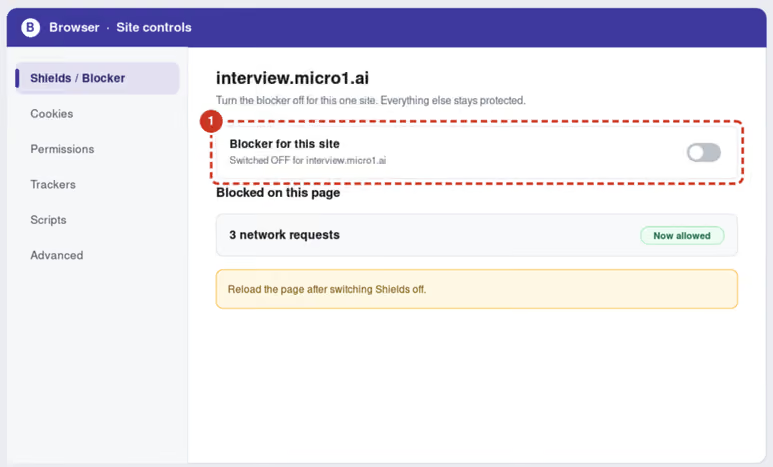
Your protection stays on everywhere else. Switch it back on after the interview if you'd like.
By extension
uBlock Origin
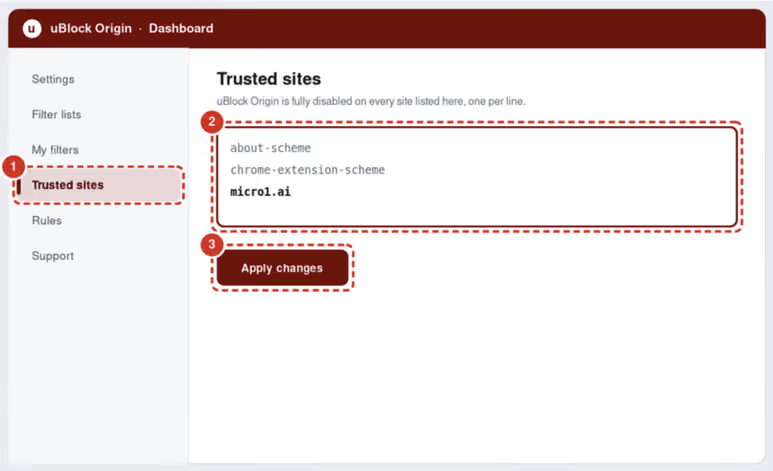
AdBlock / AdBlock Plus
Click the icon while on the interview page, then Pause on this site, or Don't run on pages on this domain.
Ghostery
Click the icon, then switch Trust site on, or use Pause Ghostery.
Privacy Badger
Click the icon and move every slider for micro1 to green (allow), or use Disable for this site.
DuckDuckGo Privacy Essentials
Click the icon and switch Privacy Protection off for this site.
Brave Shields (built into the Brave browser)
Click the Brave lion icon in the address bar and turn Shields down for this site.
Firefox Enhanced Tracking Protection
Click the shield icon to the left of the address bar and switch protection off for this site.
If you can't tell which extension is responsible
Rather than guessing:
Also worth checking
These are less common, but they block in the same way and they aren't extensions:
If your whole household's internet runs through one of these, the change has to happen on the router, not on your laptop.
Did it work?
Reload the interview link with Ctrl + Shift + R (Cmd + Shift + R on a Mac).
Still blocked? Then it's probably not an extension after all — go back and check your antivirus, or get in touch.
.avif)
Access exclusive, high-paying remote AI training roles with flexible hours. No prior AI experience required.